
Simply Ballet Diary Dates

Posted on Categories How To

Diary Dates 2026

Classes run on all public holidays except for the Easter long weekend.

Dates are subject to change.

Changes to enrollments should be made no later than 2 weeks prior to your next billing cycle.

Event From To
Summer Series Adult Classes
January 12
January 22
Term 1
January 26
April 11
Family Viewing Term 1
Mon March 30 to Thursday April 2,
then Friday April 10 and Saturday April 11
RAD Assessments April classes
April 20
April 25
Term 2
April 27
July 4
Simply Ballet RAD Assessment Extra classes and Rehearsals
April 26
June 28
RAD Assessment Dress Rehearsals
June 21 or 28
Family Viewing Term 2
June 22
June 27
RAD Assessment session
June 29
July 5
Term 3
July 20
September 26
Eileen Hogarth Awards
July 26
Family Viewing Term 3
September 21
September 26
Term 4
October 12
December 12
End of Year Concert – Dress Rehearsal
November 22
End of Year Concert – Performance
November 29
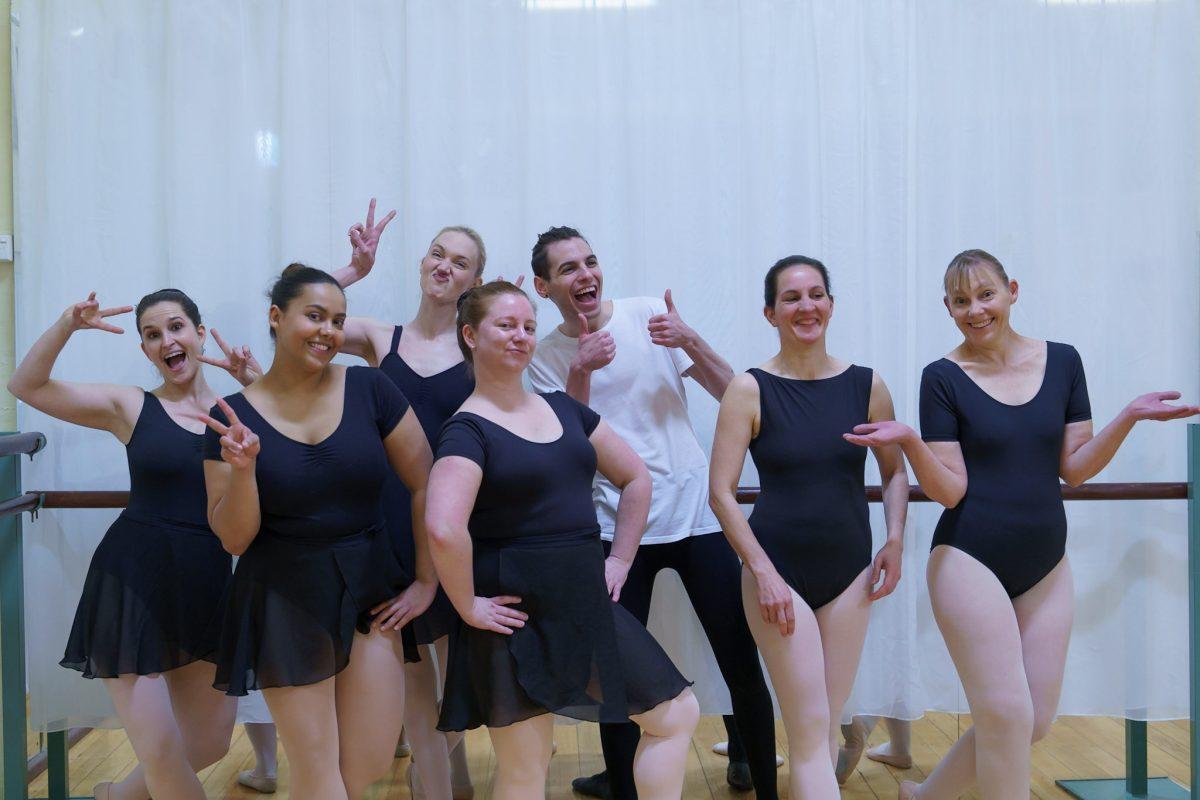
Ballet students in blue leotards standing in a pose smiling

Customer Portal

Posted on Categories How To, Simply Ballet News

Your Customer Portal

Your customer portal is the go-to place to find most administration things you need at Simply Ballet.  It’s your own personal log-in where you can update your details, see your invoices, notify us of an absence, or book a make-up class.

You can access your customer portal here

The first time you log-in you will need to set a password

How to notify an absence

It’s never nice to have to miss a ballet class – but in the event you have to, you can notify Simply Ballet of an absence through your customer portal log-in

  1. Log in to your portal
  2. Click on Classes > Notify Absences
  3. Find the date or class you will be absent from and click Notify Absence and follow the prompts

Watch the video below for step-by-step instructions

How to book an Open Division Class

If you have purchased a class card and wish to book in for a class, you can do so through your Customer Portal

  1. Log in to your portal
  2. Click on Classes > Add Enrollments
  3. Select the student you wish to enroll using the top right hand corner drop down menu, and click ‘OK’
  4. Find the date or class you wish to attend and click Add
  5. Select the date/time you wish to take your class and follow the prompts to checkout
Watch the video below for step-by-step instructions

How to book a make-up class

What is a make-up class? Well, in the unfortunate situation where you have to miss a class you are entitled to a make-up class within 90 days.  This is a class you can take as a replacement for the missed class at either another time, or another level if appropriate.  Click here for our full Simply Ballet Make-up Class Policy

  1. Log in to your portal
  2. Select your student (if more than one student)
  3. Click on Classes > Book Make-ups
  4. Find the date or class you wish to attend as your make-up class and click Book Make-up
  5. Select the date/time you wish to take your make-up class and follow the prompts 
Watch the video below for step-by-step instructions

What else can I do in my customer portal?

  • Update personal details and emergency contact
  • Update students details
  • Update your direct debit details
  • View past and future invoices
  • Enrol in classes
  • Change you notification settings
  • Email Simply Ballet directly

and more!

Have questions? Just contact us and we’re happy to help.